Latest Posts
Saturday, March 14, 2015
If you've installed an operating system in VirtualBox before you've probably noticed the screen is really small even when you switch to Fullscreen mode. It's so small that you can't even see the fonts for the icons if you have a desktop GUI installed. To fix this problem VirtualBox provides us with the Guest Additions tool. Which enables the virtual machine to be viewed at fullscreen.
To enable full screen on a Linux operating system. Perform the following actions, this should work on all Linux distribution that VirtualBox supports.
1. Start the virtual machine that you want to make full screen

To enable full screen on a Linux operating system. Perform the following actions, this should work on all Linux distribution that VirtualBox supports.
1. Start the virtual machine that you want to make full screen
Friday, March 13, 2015
The topic of installing a desktop GUI has been debated over the years. Friendships have been ruined because of it. I don't know if that's true, but some believe that the server should only have command line. This blog is not about that debate, I just want to see some freaking graphics on the monitor, and for my mouse to be more than a paper weight. So there's my opinion on the subject.
Anyways installing a GUI on Ubuntu server is really easy.
Here are the steps:
1. Start up your Ubuntu server VM
Anyways installing a GUI on Ubuntu server is really easy.
Here are the steps:
1. Start up your Ubuntu server VM
Thursday, March 12, 2015
In the previous two blogs we've gone through the steps to setting up the virtual machine to install the Ubuntu Server on VirtualBox, in this blog we will go over the steps to installing the Ubuntu Server. Be warn this is a long blog. I usually try to break up my blog so that you won't doze off, but I feel like this one has be left in tack. Here are the steps to install Ubuntu Server on your VirtualBox.
1. Right click on the "Ubuntu Server" virtual machine and select "Start"
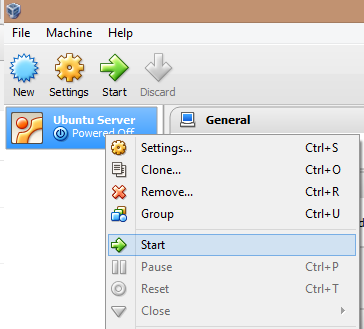
1. Right click on the "Ubuntu Server" virtual machine and select "Start"

Wednesday, March 11, 2015
In the last blog we've created a new virtual machine that is ready for a Ubuntu Server operating system. Now we will install the Ubuntu Server operating system on that virtual machine. Here are the steps you need to take to install a Ubuntu Server operating system on that virtual machine.
1. Right click the "Ubuntu Server" virtual machine, then select "Settings"

1. Right click the "Ubuntu Server" virtual machine, then select "Settings"
Tuesday, March 10, 2015
If you are a developer on a shoestring budget, Linux is the way to go if you want to compete with the big boys. I have nothing against Microsoft, I actually love it a lot on the job. But when you want to start a personal project, Linux is the way to go, to get the most bang for the buck.
Ubuntu has always been great at offering enterprise level server products for free. A lot of what you learn with Ubuntu or any server side Linux distribution you can translate into the Windows environment quite easily. So it's worth the effort.
But before you can do all that you need the Ubuntu server environment up and running. Instead of going the dual boot route you can have your Windows OS as your main OS and run Ubuntu on a virtual machine, that's where VirtualBox comes in. So let's begin our journey into the world of enterprise Linux.
Ubuntu has always been great at offering enterprise level server products for free. A lot of what you learn with Ubuntu or any server side Linux distribution you can translate into the Windows environment quite easily. So it's worth the effort.
But before you can do all that you need the Ubuntu server environment up and running. Instead of going the dual boot route you can have your Windows OS as your main OS and run Ubuntu on a virtual machine, that's where VirtualBox comes in. So let's begin our journey into the world of enterprise Linux.
- First thing you need is the latest Ubuntu server distribution, you can get it here http://www.ubuntu.com/download/server

Monday, March 9, 2015
Transaction processing is a concept in SQL that allows you to execute a query or rollback the changes if something goes wrong. A way of enforcing the data integrity of the database. As such, you can only rollback INSERT, UPDATE, and DELETE. Not that there's any use in rolling back a SELECT statement because there's no change in data.
The following is how you would wrap a transaction around a DELETE statement:
(1 row(s) affected)
If you are dealing with multiple statements then you can use the SAVE TRANSACTION, SAVE TRANSACTION allows you to create a placeholder so that you can rollback a transaction at a checkpoint.
The following is how you would wrap a transaction around a DELETE statement:
BEGIN TRANSACTION
DELETE Products WHERE ProductID = 87
COMMIT TRANSACTION
The above query will only execute if there are no errors, if there's an error the transaction will be rolled back. That's it, that's the whole concept of what a transaction is, if there are no errors then you should get the following message.
(1 row(s) affected)
If you are dealing with multiple statements then you can use the SAVE TRANSACTION, SAVE TRANSACTION allows you to create a placeholder so that you can rollback a transaction at a checkpoint.
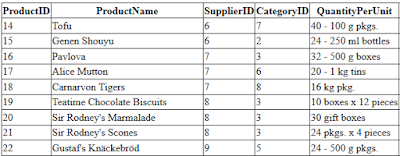
In the last blog we just selected the Products entities from the NorthwindEntities with this Linq Query.
It gets the job done but, the GridView displays the CategoryID and SupplierID as integers, which is not very useful to your users. Plus, we don't want to display the ProductID.
var query = from prod in nwctx.Products
         select prod;
It gets the job done but, the GridView displays the CategoryID and SupplierID as integers, which is not very useful to your users. Plus, we don't want to display the ProductID.

Wednesday, March 4, 2015
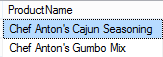
The SOUNDEX function is a cool function that you can talk about at your next dinner party. It searches for the words that sounds the same but are not. Like the query below, which queries product names that sounds like the word "Chief" in the Northwind Products table.
SELECT ProductName
FROM Products
WHERE SOUNDEX(ProductName) = SOUNDEX('Chief')
Monday, March 2, 2015
As you may have guessed the SQL mathematical operators are equivalent to their regular mathematical counter parts.
1. Addition

- + Addtion
- - Subtraction
- * Multiplication
- / Division
Eamples:
SELECT UnitPrice, (UnitPrice + 20) AS RipOffPrice
FROM Products
Sunday, March 1, 2015
Concatenation means combining the value of two or more columns together to form a single value. The most common usage for this operation is to combine the first name and last name field. Like the query below.
The query above concatenates the FirstName and LastName column from the Employees table in the
Northwind database and assign the alias Name to combined value.
  SELECT FirstName + ' ' + LastName AS Name
  FROM Employees
The query above concatenates the FirstName and LastName column from the Employees table in the
Northwind database and assign the alias Name to combined value.
Subscribe to:
Posts (Atom)


